
Overview #
Toika’s ES16+, ES24+ and ES32+ have a built-in computer that establishes a wireless local area network (WLAN) and allows direct weaving control from a web browser running on a PC, tablet or mobile phone. These instructions explain how to start the Toika ES+ in WLAN mode, how to switch between WLAN mode and the traditional USB mode, and how to shut down the ES+ when weaving is complete.
These instructions apply to the Toika ES+ models only, and not the older Toika ES.
Control Panel #
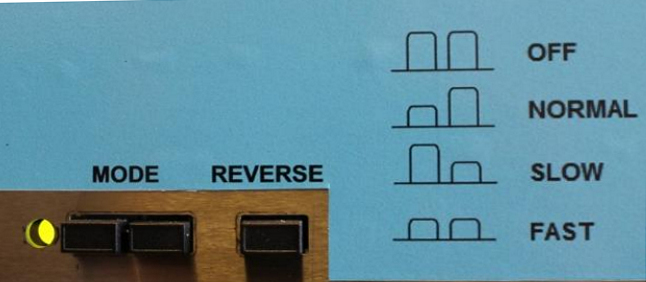
There are three push buttons in the from of the ES+ Two control the mode, the third is the Reverse (direction) button. They are latching buttons, and you press them in for “on” and then press again to pop them out for “off”.
There is also a three colour LED to the left of the switches, which has various meanings depending on the control mode and weaving mode.
WLAN details #
Look on the underside of the ES+ where you will find the WLAN SSID which looks like ESxxxxxx and also the password for the WLAN network. Make a note of both, it’s easier than looking under the ES+ each time.
Starting the ES+ #
- Make sure that all three buttons on the control panel are popped out.
- Switch on the power to the ES+ using the switch on the back.
- After a short time the LED should light green. This means that the ES+ is in USB control mode.
Connecting your browser to the ES+ #
- The ES+ has started the WLAN with the SSID ESxxxxxx where xxxxxx is unique to your ES+. Connect to this WLAN using your PC, tablet or phone’s WiFi. Enter the password when prompted. You will be told that there is no internet connection, this is normal. You should connect to it anyway.
- Open your web browser and type toika.local:8000 in the address bar. Note the dot (full stop) and colon characters, it is important that you type these exactly as shown. It is worth bookmarking this page, you will need it each time you use the ES+
- Now press in the Reverse button on the control panel of your ES+
- Press and hold the pedal for a few seconds. The LED should start flashing. The ES+ is now in WLAN control mode and waiting for a signal to weave.
- Pop out the Reverse button.
- Press the appropriate buttons on the control panel to select the weaving mode.
| Weaving Mode | Left Mode Button | Right Mode Button |
| Standby / Switch Control Mode | Popped Out | Popped Out |
| Normal | Pressed In | Popped Out |
| Slow | Popped Out | Pressed In |
| Fast | Pressed In | Pressed In |
You can now upload or select a .WIF file and advance the pick with the pedal.
Switching back to USB mode #
If you want to switch back to USB mode and directly control your ES+ with WeavePoint or Fiberworks do the following:
- Pop out all three buttons on the control panel.
- Press and hold the pedal until the LED flashes.
- Plug the USB cable into your computer.
- Select the weaving mode using the mode buttons (see previous table).
- Open WeavePoint or Fiberworks and start weaving.
Shutting down the ES+ #
You should not just switch off the ES+ but instead follow this sequence to shut it down.
- Pop out all three buttons on the control panel.
- Press and hold the pedal. It will take some time, but when the LED goes off you can release the pedal.
- Power off the ES+ using the switch on the back.
LED colours #
The LED has different colours according to the control mode and the weaving mode.
| Control Mode | LED Colour | Meaning |
| Either | Green | Normal weaving, receiving weaving control. |
| USB | Orange | No control data received. Check that: The USB cable is connected. The WeavePoint or Fiberworks software in in Weave mode. |
| WLAN | Orange | Lost connection to device. Check that the PC, tablet or phone are connected to the ESxxxxxx WLAN and that at the bottom of the Weaving web page it shows “Connected”. |
| Either | Red | An error has been detected. Pop out all the control panel buttons and press and hold the pedal for 10 seconds to shutdown the ES+ If the red LED does not go out the ES+ has not shutdown cleanly. Turn off the switch on the back, wait for ten seconds, then turn it back on again. |
| Either | Off | The USB power cable from the rear of the ES+ is unplugged from the black box on the underside of the ES+. Reconnect it. |


